This feature is only available in the Closet and Boutique AI plan.
Dotb's Smart Agent automatically answers buyer messages on Vinted using AI and handles offers for you - saving time and keeping your buyers engaged around the clock.
Want to see it in action? Try the Smart Agent playground.
How it works
Dotb continuously scans your Vinted inbox for new messages and offers, then decides what to do based on your configuration: it answers questions using your Instructions and Q&A, follows your shipping policy, and accepts or counters offers using your discount rules. A short, randomized delay between checks keeps the activity looking natural.
Two modes: AI agent vs Discount only
- AI agent - the agent answers buyer messages with AI and handles offers. Uses AI credits (included in the Closet and Boutique AI plan).
- Discount only - turn off Enable AI agent in the Settings tab to run the offer engine on its own: it accepts and counters offers based on your rules while AI message answering is skipped, so no AI credits are used.
Settings
Configure the agent's behaviour in the Settings tab:
- Model & Response - pick the AI provider (Anthropic, OpenAI, or Google), a response style (Conversational or Concise), and how grounded answers should be (Conservative, Balanced, or Creative). Set the response language buyers are answered in.
- Escalation - get a Discord DM when the agent can't answer or detects a frustrated buyer, so you can step in.
- After purchase - keep replying after the buyer pays (shipping questions, follow-ups) or stop once the sale is done.
- Limits - cap how many AI answers each buyer receives within a time period.
- Buyer filters - skip buyers with low or no ratings, or ignore specific usernames.
- Delay between loops - control how often the agent checks for new conversations.
You can also Import config from another of your Vinted accounts, or Reset everything back to defaults.
Shipping
In the Shipping tab, tell the agent the days you typically ship and whether same-day shipping is possible. When the shipping policy is off, the agent stays vague about shipping so you can handle those questions yourself or through Q&A.
Instructions
Instructions are short rules that shape how the agent responds - best practices and things to avoid (e.g. "Never negotiate price in chat - redirect to Vinted offers"). Keep them specific, one rule each, so the model follows them reliably.
Q&A
Add questions and their answers once, and the agent reuses them to reply to buyers. Each answer can include an optional picture, sent alongside the text reply when that Q&A matches. Start from the built-in suggestions or write your own.
Smart Offers
Dotb accepts and counters offers automatically, configured in the Discount tab:
- Offer types - apply one Simple percentage to every listing, set Tiered percentages by price range, or use Per listing minimums set on each Vinted item.
- Auto-accept - accept any offer at or below your threshold, optionally with a custom acceptance message.
- Detect verbal offers - when a buyer asks for a price in chat ("can you do 35?"), the same rules reply with an accept or counter, with no AI negotiation.
- Auto-counter - negotiate progressively toward your minimum through counter-offer steps, each with its own message.
- Smart rounding and buyer limits keep prices attractive and cap how often you accept or counter per buyer.
Set a minimum price per listing
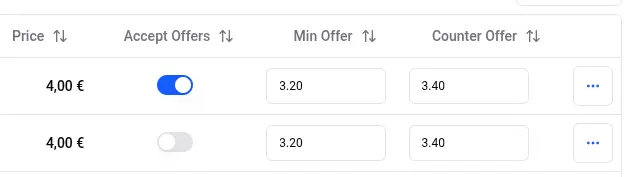
With the Per listing offer type, you set the minimum acceptable price directly on each item. In the Dressing Panel, click the Columns button and enable the Accept Offers, Min Offers, and Counter Offers columns. Set the minimum price (and whether to auto-accept) for each listing - offers at or above the minimum are accepted, lower ones are countered.
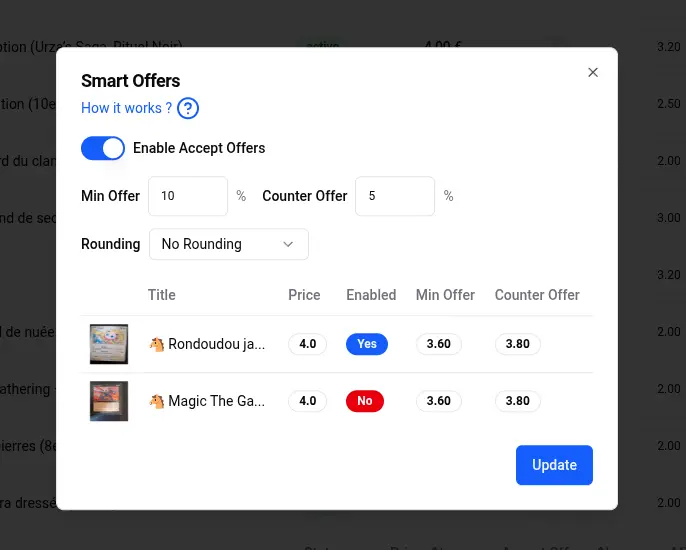
To set minimums for many items at once, use the bulk tool. Select listings then click on the button Bulk Actions > Automations > Smart Offers
Playground
Before going live, use the Playground tab to test the agent on your real listings: send a message, make an offer, or simulate a purchase, and see exactly how the agent would respond - including the payload it receives and the lowest offer it would auto-accept.